Showing posts with label Windows. Show all posts

Tuesday, August 6, 2013

Windows 8 - How search any installed software, settings or files on windows 8? (Solved)


The answer is -
1. Press Logo key from the keyboard.

Windows 8 - How search any installed software, settings or files on windows 8? (Solved)1


2. Start typing required software, settings or files (Can also web search, Mail search and more from right side panel)

3. If you want to search applications or software just type the name and select the software from left side using array key and press enter.


Windows 8 - How search any installed software, settings or files on windows 8? (Solved)2


4.  If you want to search others like settings, files, web, mail, music, news; just select your desired one after typing the name of desired item.


Windows 8 - How search any installed software, settings or files on windows 8? (Solved)3


5. I think you will find any item very quickly by using this process.


Saturday, August 3, 2013

Windows 8 - How to open Device manager in windows 8?


Windows 8 - How to open Device manager in windows 8?


The answer is – Go to Left -Down Corner of your desktop and Right Click now select “Device manager” option.

See the images and Follow the steps -

Windows 8 - How to open Device manager in windows 8? 1

There is nothing on Left -Down Corner. But when you put your mouse on the corner you will see a squire start menu and then right click. This right click will show you a pop up menu, you can select Device manager from this menu.


Windows 8 - How to open Device manager in windows 8? 2


Done.


Sunday, November 4, 2012

How to make shutdown Shortcut on Windows Eight (8)


How to make shutdown Shortcut on Windows Eight (8) -

You can make a Shutdown Shortcut Command on our Desktop or Start screen.
At first we will make a shortcut on Desktop after that we will pin it to Start Screen.
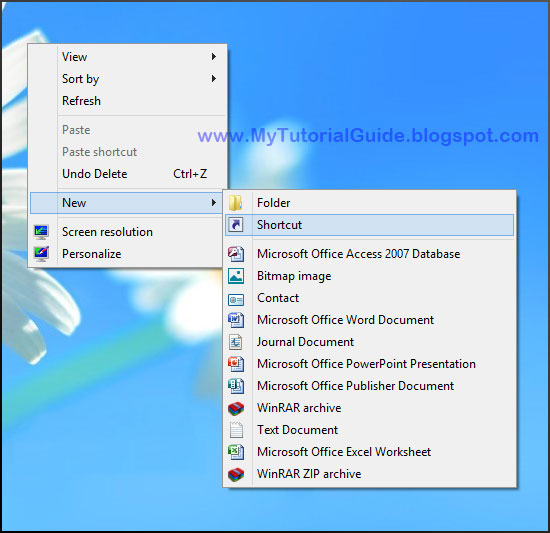
First of all, Right Click on your Desktop and select “New > Shortcut”. You will see a Create Shortcut Dialog box.

How to make shutdown shortcut on windows eight 8 (1)


Create Shortcut Dialog box looks like this –
 
How to make shutdown shortcut on windows eight 8 (2)

Write down this command on Type the location of the item:
Shutdown /s /t 0
[Give Space before both of / (Slash) and 0 (zero). The last character 0 is numerical zero]
Now click on Next button and give a name of the shortcut. (Recommended name is Shutdown, you can use another name)


How to make shutdown shortcut on windows eight 8 (3)

Now click Finish.
You have done.
Now you can shutdown your computer using this shortcut with double clicks.

If you wish to change the icon of this shortcut to make it more beautiful just follow the steps –
Right click on the shortcut and select Properties.
Click on Change Icon… button.

How to make shutdown shortcut on windows eight 8 (4)


 Click OK on the dialog box.


How to make shutdown shortcut on windows eight 8 (5)

Select the red power button and click OK.

How to make shutdown shortcut on windows eight 8 (6)

Click Ok on Shutdown Properties dialog box.

How to make shutdown shortcut on windows eight 8 (7)

Now it is looking great.


How to make shutdown shortcut on windows eight 8 (8)


If you wish to set this shortcut on your Start screen; Right Click on the shortcut and select Pin to start. Now you can see this shutdown shortcut on your Start screen. Remember that, start screen shortcut can shutdown your computer with a single click and Desktop shortcut needs double click.

(It also works in windows seven 7)


Sunday, October 21, 2012

How to Change, Edit or Stop startup applications using run command or third party application (Windows xp and Seven)


How to Change, Edit or Stop startup applications using run command or third party application (Windows xp and Seven) -

For windows xp and seven – 

( I use another theme with windows seven, so appearance can be different)

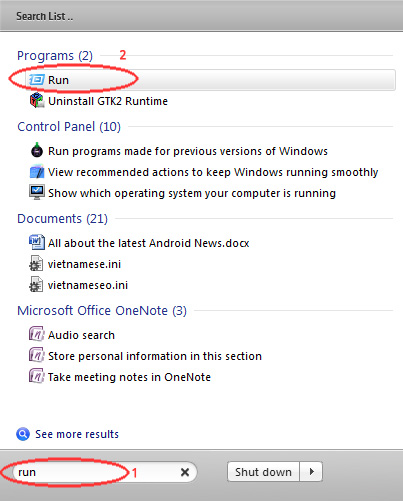
1. Click on “Start” or press Logo button. Write “run” and press Enter. (You can open it using “Logo button + R” in xp and seven) [Using mouse on xp- Click on “Start” and click “Run”]

<Next Steps are same in xp and seven>


How to Change, Edit or Stop startup applications using run command or third party application (Windows xp and Seven)


2. Now write “msconfig” (Without quotes) on the Box and press Enter or click OK.


How to Change, Edit or Stop startup applications using run command or third party application (Windows xp and Seven) msconfig


3. If user account control asks for allow, just Click Yes. (Or press left arrow key and press Enter).

4. Now Click “Startup” tab and deselect the applications which you don’t want to start when your computer starts. After that press OK.


How to Change, Edit or Stop startup applications using run command or third party application (Windows xp and Seven) System configuration

5. Now your computer asks you about Restart your Computer. If you want to Restart now click on “Restart” if don’t click “Exit without restart”. (Note: Your settings will active when you normally restart your computer).


How to Change, Edit or Stop startup applications using run command or third party application (Windows xp and Seven) restart


You have done.


If you want to do it using third party software –


You can use “CCleaner” or “Revo Uninstaller” etc. to disable startup applications.


Using CCleaner – (xp and Seven both) -


1. First download CCleaner. From here.

2. Install and open it.

3. Click “Tools” from left side.

4. Click “Startup” from right side of “Tools”.

5. Now Double click an application which you want to remove from Startup. (or one click on application and click “Disable” button).

6. Close the CCleaner.


How to Change, Edit or Stop startup applications using run command or third party application (Windows xp and Seven) CCleaner


You have done.


Using Revo Uninstaller (xp and Seven both) –

1. First download Revo Uninstaller. From here. (You can also download portable version)

2. Install and open it.

3. Click “Tools”

4. Click “Autorun Manager”

5. Now Un-chake applications from the list which you want to disable from startup.

6. Close the Revo Uninstaller.


How to Change, Edit or Stop startup applications using run command or third party application (Windows xp and Seven) revo uninstaller


Thank you.

I think your computer will boot and run faster after disabling un-wanted applications.